- Shopping, made easy.
- /
- Get the app!
Product Description :
Features:
Support 4 HDMI input, 1 HDMI output ;
Support 4 channels HDMI signal screen segmentation ;
Support 4 channels HDMI signal seamless switching ;
Support highest resolution up to 4K/60Hz ;
Support IR control ;
Support audio output format: PCM2.0 ;
Supports 1 way mouse and keyboard to control 4 ways PC host ;
USB supports Windows;Linux;MAC OS and Android operation system, etc. plug and play ;
Supports USB 2.0 Low speed(1.5Mb/s);Full speed(12Mb/s) ;
KVM (mouse and keyboard) connection operation:
1.1: Connect PC1-PC4 ports on the switcher and signal source (such as USB port on the computer) with 4 USB 2.0 cable .
1.2: Connect to Keyboard/Mouse ports on the switcher with USB mouse and keyboard .
2.1: KVM synchronization function mode, click'*'+'0' to enter the synchronization mode, and the 4 LEDs on the 'PC1-PC4' port will all light up, then the mouse and keyboard can control the PC on the 4 ports at the same time (Such as a computer); if you want to exit the synchronization function, click '*'+'0' or enter other switching modes to exit.
2.2: Kvm function switch:
PC1: click ‘*'+‘F1'
PC2: click ‘*'+‘F2'
PC3: Click ‘*'+‘F3'
PC4: Click ‘*'+‘F4'
2.3: Mouse through mode: Click ‘*'+'S' to move the mouse through PC1-PC4. Note: The Keyboard/Mouse port is connected to the mouse and keyboard. After the switch is powered on, it is connected to the ‘PC1' port by default. When the LED of that PC port is on, it is switched to the corresponding PC. It takes a certain amount of time (usually a few seconds, depending on the operating system) when each PC port is connected to the signal source for the first time, and the control can be quickly switched after connection.
Keyboard hotkey:
‘*'+‘1':Choosing HDMI IN1 signal;
‘*'+‘2':Choosing HDMI IN2 signal;
‘*'+‘3':Choosing HDMI IN3 signal;
‘*'+‘4':Choosing HDMI IN4 signal;
 CORSAIR iCUE Link 5000T LX RGB Mid-Tower ATX PC Case – 3X Pre-Installed LX120 RGB Fans, Integrated Aurora RGB Light Strips, Spacious Interior, iCUE Link System Hub Included – Black
KWD 128
CORSAIR iCUE Link 5000T LX RGB Mid-Tower ATX PC Case – 3X Pre-Installed LX120 RGB Fans, Integrated Aurora RGB Light Strips, Spacious Interior, iCUE Link System Hub Included – Black
KWD 128
 8K60Hz Displayport KVM Switch 3 monitors 2 computers with 8K DisplayPort cable 1.4, DP to DP male-to-male gold-plated cable 3.3 ft. (8K60Hz, 4K144Hz) for 2 computers sharing 3 monitors and 1 set of ke
KWD 42.500
8K60Hz Displayport KVM Switch 3 monitors 2 computers with 8K DisplayPort cable 1.4, DP to DP male-to-male gold-plated cable 3.3 ft. (8K60Hz, 4K144Hz) for 2 computers sharing 3 monitors and 1 set of ke
KWD 42.500
 CKL DisplayPort KVM Switch (4K@60Hz for 2 Computers 2 Monitors Supports Hotkey)
KWD 49
CKL DisplayPort KVM Switch (4K@60Hz for 2 Computers 2 Monitors Supports Hotkey)
KWD 49
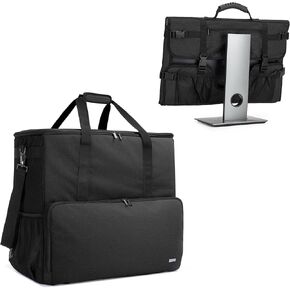 CURMIO Desktop Computer Travel Bag, Desktop Computer Tower and Monitor Carrying Case for PC Chassis, Monitor, Keyboard, Cable and Mouse, Earphone
KWD 37.500
CURMIO Desktop Computer Travel Bag, Desktop Computer Tower and Monitor Carrying Case for PC Chassis, Monitor, Keyboard, Cable and Mouse, Earphone
KWD 37.500