- Shopping, made easy.
- /
- Get the app!

Connect
1. Connect to PS-5
When your controller hasn't been paired with your current PS-5 console or has been connected to another console, Use a USB cable to connect the controller to your PS-5 console. During the connection, the system will automatically pair the controller. Once paired, remove the USB cable and press the HOME button. The controller will now connect wirelessly via Bluetooth. The LED light will stay on with a steady color, indicating it's successfully connected to your console.
2. Connect to Windows PC
Turn off the controller. Press and hold the SHARE button and the HOME button together. Hold both for 3 seconds. The LED light will flash white. On your PC, open Bluetooth settings and start searching for devices. Find and click on "DualSense Wireless Controller" in the device list to pair. When paired successfully, the LED light will stay on.
3. Connect to Steam Deck
Turn off your controller. Press and hold the SHARE button and the HOME button together. Hold both for 3 seconds. The LED light will flash white. Open Bluetooth settings on your Steam Deck. Find and click on "DualSense Wireless Controller" to connect. Once connected, the LED light will stay on.
4. Connect to Mac
Open System Preferences > Bluetooth and turn Bluetooth on. With the controller off, hold SHARE + HOME (PS button) together for 3 seconds until its light flashes white. On your Mac, find "DualSense Wireless Controller" in the Bluetooth devices list, click Pair, and wait a few seconds—it'll connect automatically.


 JUYEER Hotas Desk Mount Compatible for T.16000M FCS/TCA Officer Pack Airbus/VKB Gunfighter MK.lll/Logitech X52/X52 Pro/X56/X56 Rhino/Thrustmaster Warthog 10C and other HOTAS series flight simulation controller
KWD 35.500
JUYEER Hotas Desk Mount Compatible for T.16000M FCS/TCA Officer Pack Airbus/VKB Gunfighter MK.lll/Logitech X52/X52 Pro/X56/X56 Rhino/Thrustmaster Warthog 10C and other HOTAS series flight simulation controller
KWD 35.500
 THRUSTMASTER F-16C Viper HOTAS Add-Onn Grip (PC) HOTAS Magnetic Base (PC)
KWD 154.500
THRUSTMASTER F-16C Viper HOTAS Add-Onn Grip (PC) HOTAS Magnetic Base (PC)
KWD 154.500
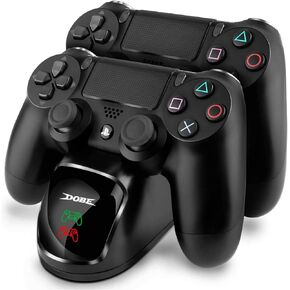 Controller Charger forPS4, Dual USB Controller Charging Station for Pstation 4/PS4/ Slim/ PS4 Pro Charging Dock Stand Station
KWD 7
Controller Charger forPS4, Dual USB Controller Charging Station for Pstation 4/PS4/ Slim/ PS4 Pro Charging Dock Stand Station
KWD 7
 GAMFAMI Controller Charging Station for Xbox One, Controller Charger with 2 x 800mAh Rechargeable Battery Packs Compatible for Xbox One/One X/One S/Xbox One Elite Wireless Controllers…
KWD 9
GAMFAMI Controller Charging Station for Xbox One, Controller Charger with 2 x 800mAh Rechargeable Battery Packs Compatible for Xbox One/One X/One S/Xbox One Elite Wireless Controllers…
KWD 9