- Shopping, made easy.
- /
- Get the app!
⭐ Applicable printer:
For CANON PIXMA MG5410
For CANON PIXMA MG5510
For CANON PIXMA MG5610
For CANON PIXMA MG6310
For CANON PIXMA MG6410
For CANON PIXMA MG6610
For CANON PIXMA MG7110
For CANON PIXMA MG7510
For CANON PIXMA IP7210
For CANON PIXMA iP8710
For CANON PIXMA MX721
For CANON PIXMA Ix6810 Printer
⭐ Situations encountered during installation and how to deal with them
1. The computer prompts "Used original ink cartridges/non- for HP ink cartridges/empty ink cartridges/insufficient ink cartridges"
And other issues
Solution: Click the "Continue" or "OK" button on the printer or computer to continue using it.
The printer manufacturer is protecting the original ink cartridges, so this type of information will be prompted.
But in fact, we can use it normally by clicking "Continue".
2. After installing the ink cartridge, the document cannot be printed.
solve:
1. Confirm whether the blue tape (the transparent tape that protects the nozzle) has been removed
2. You can lightly scratch the nozzle on the paper towel to see if there is any ink color coming out.
3. When using the computer, it prompts "ink cartridge failure/ink cartridge problem/ink cartridge" and other issues.
Solution: The above problem is usually caused by the ink cartridge chip not being recognized. You can tear off the chip.
Then cover the chip on the original chip and stick it on at the 4 points.
 -16%
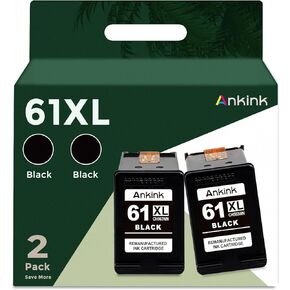
61XL Black Remanufactured Ink Cartridges Replacement for HP 61 XL(2 Pack) Work with 5530 4500 2540 4630 4501 4502 4635 3050 2542 2541 3510 2514 3512 1000 1010 1510
KWD 13
-16%
61XL Black Remanufactured Ink Cartridges Replacement for HP 61 XL(2 Pack) Work with 5530 4500 2540 4630 4501 4502 4635 3050 2542 2541 3510 2514 3512 1000 1010 1510
KWD 13
 -23%
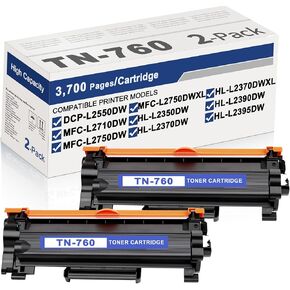
TN760 Toner Cartridge for Brother Printer - 2-Pack Compatible for MFC-L2710DW MFC-L2750DW HL-L2350DW HL-L2370DW HL-L2395DW HL-L2390DW DCP-L2550DW Printers, (High Yield, Black)
KWD 22
-23%
TN760 Toner Cartridge for Brother Printer - 2-Pack Compatible for MFC-L2710DW MFC-L2750DW HL-L2350DW HL-L2370DW HL-L2395DW HL-L2390DW DCP-L2550DW Printers, (High Yield, Black)
KWD 22
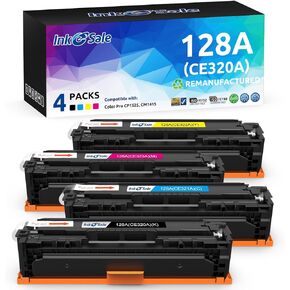 INK E-SALE Remanufactured Toner Cartridge Replacement for HP 128A CE320A CE321A CE322A CE323A Canon 116 Black Cyan Magenta Yellow Toner Set for HP LaserJet CP1525n CP1525nw CM1415fn CM1415fnw Printer
KWD 24.500
INK E-SALE Remanufactured Toner Cartridge Replacement for HP 128A CE320A CE321A CE322A CE323A Canon 116 Black Cyan Magenta Yellow Toner Set for HP LaserJet CP1525n CP1525nw CM1415fn CM1415fnw Printer
KWD 24.500
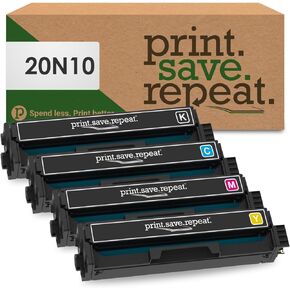 Print.Save.Repeat. Lexmark 20N10 4-Color Combo Pack Remanufactured Toner for CS331, CS431, CX331, CX431
KWD 177
Print.Save.Repeat. Lexmark 20N10 4-Color Combo Pack Remanufactured Toner for CS331, CS431, CX331, CX431
KWD 177